Two commands. That’s where most CNC programming starts and, honestly, where most mistakes happen too.
G00 moves your tool fast, through open air, with no cutting. G01 cuts material at a speed you control. Get these two right, and you’ve got the core of CNC motion figured out. Get them wrong, and you’ll be fishing broken end mills out of a ruined part.
This guide covers both — what they do, how to write them, what trips people up, and how they connect to the codes you’ll reach for next.
G-Code and CNC Programming: The Short Version
G-code is a list of instructions. Your machine reads each line in order and turns it into physical movement. Move here. Cut at this speed. Turn the coolant on. Simple in concept, unforgiving in practice.
CNC programming is the job of writing those lines in the right order. You’re not guiding the tool by hand — you’re describing the entire job up front so the controller can repeat it exactly every time. Part one and part five thousand should be identical. That’s the whole point.
Where G-code matters most is at the tolerance line. A rapid move aimed in the wrong direction drags a tool through a fixture. A feed rate that’s too high snaps an end mill mid-cut. The code shows your skill — or exposes the gaps in it. What you type is exactly what the machine does. Make sure those two things match.
One thing that trips up beginners early: G00 and G01 are modal commands. That means once you call one, it stays active until you call the other — or a different motion code — to replace it. Call G01 in one block, and every subsequent motion block runs as a G01 feed move until something changes it. This is standard behavior on modern Fanuc and Haas controls. Ignore it, and you’ll inherit a cutting feed rate on a move you thought was rapid, or vice versa.
G00 and G01: Same Axis, Very Different Jobs
Both codes move the tool in a straight line. That’s where the similarity ends.
G00: Get There Fast
G00 is pure repositioning. The machine moves to the target at maximum speed — no cutting, just travel. Think of it as lifting the tool clear and shooting it across the table to the next position.
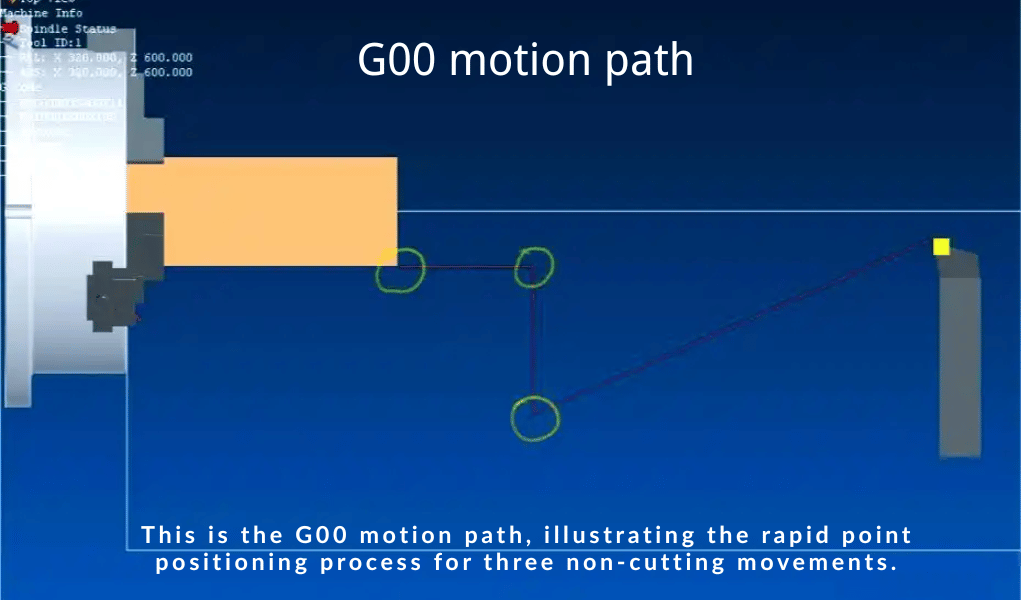
On most machines, that means speeds well above 10,000 mm/min. You don’t set the rate. The machine uses the traverse speed it’s built for, and the controller may further limit it based on the move geometry or axis limits. If your machine seems to be running slower than spec, check whether axis acceleration limits, safety zone restrictions, or a rapid override setting is capping the speed. Learn more about the G00 code.
G00 X100.0 Y50.0
The tool snaps to X100, Y50 — fast. Here’s the thing most people don’t expect: G00 doesn’t always travel in a clean diagonal. On many controls, each axis accelerates independently at its own max rate, so the path can dog-leg. Don’t assume the rapid path is clear just because the start and end points are. Check what’s between them.
G01: Cut at the Speed You Set
G01 is the code doing the actual work — milling a slot, facing a surface, turning a diameter. It works on both machining centers and turning centers. It moves in a straight line at whatever feed rate you specify, and the controller interpolates each axis speed to maintain that exact path.
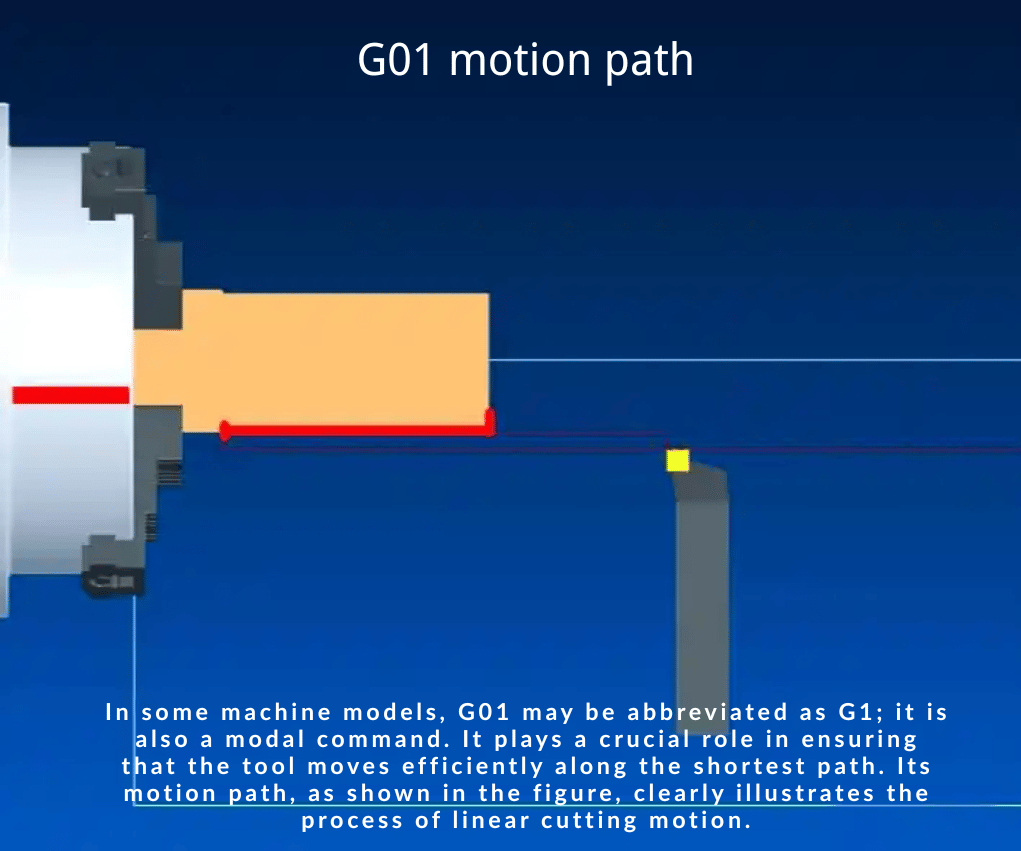
You always need an F value with G01:
G01 X100.0 Y50.0 F250.0
That F250.0 keeps the move at 250 mm/min. Drop the F value, and the machine either throws an alarm or reverts to the last active feed rate — neither of which is what you want during a cut. Some controllers will fault immediately; others will use whatever F value is carried over from a previous block. Don’t test it. Always specify the feed rate explicitly.
The One Question That Keeps Them Straight
Are you cutting, or are you moving through air?
If the tool is in the air, use G00. Save time. If the tool is touching material, use G01. Control the feed.
Swap them and you’ll know it immediately. A G00 into material slams the tool at full traverse — broken tool, wrecked spindle. A G01 where a rapid belongs costs you cycle time you can’t get back, multiplied across every part in a production run.
The Video Below Explains The Difference Between G00 And G01.
Writing G00 and G01 Into a Real Program
Knowing the theory gets you started. Writing it into working code is where it clicks.
For G00, the default habit should be Z first. Retract the tool before you move laterally. Set a consistent safe clearance height — a number you use every time the tool moves between features — and retract to it before any X/Y rapid. This “R-plane” habit eliminates an entire class of fixture-collision mistakes.
G00 Z25.0
G00 X100.0 Y50.0
The tool lifts to Z25, then moves to the next position. Flip that order, and you risk dragging the cutter across whatever’s sitting between the two points.
For G01, the F value runs the show. Too fast and you overload the tool or destroy the surface finish. Too slow and you’re rubbing instead of cutting, which work-hardens the material and dulls the edge faster than you’d expect. Find the right number for your material and tool — and remember, once you set it, it stays active as a modal value until you change it. A roughing feed rate won’t automatically step down for a finishing pass. That responsibility is yours.
Here’s a short sequence that puts both together:
G00 Z25.0
G00 X10.0 Y10.0
G01 Z-5.0 F100.0
G01 X60.0 F250.0
G00 Z25.0
The tool rises to a safe height, moves over the start point, feeds down into the part at 100 mm/min, cuts across at 250 mm/min, then rapids back up. Notice the slower plunge feed — going straight into material in Z is harder on a tool than cutting sideways. Back that number off.
One more habit worth building early: treat the Z axis with extra respect. A positive Z when you meant negative sends the tool up instead of down. In the open air, that’s embarrassing. Near a fixture or workpiece, that’s a crash.
Advanced Codes: G02, G03, and M-Codes
Once G00 and G01 are second nature, the next step is curves and machine functions.
G02 cuts clockwise arcs. G03 cuts counterclockwise. Both need a feed rate and a way to define the curve — most programmers use I and J values to point from the arc start to its center:
G01 X40.0 Y10.0 F250.0
G02 X50.0 Y20.0 I10.0 J0.0
That G02 cuts a clockwise arc to X50, Y20, with the center 10 mm to the right of the start. Clockwise versus counterclockwise trips people up constantly. Sketch it first — look at the part from the direction the tool approaches, picture which way the arc curves, then write the code.
G-codes handle where the tool goes. M-codes handle everything else. You’ll use these on almost every program:
- M03 — spindle on, clockwise
- M05 — spindle stop
- M08 — coolant on
- M09 — coolant off
- M06 — tool change
- M30 — end program and reset
A G01 move with the spindle off doesn’t cut. It drags a dead tool across the surface. M-codes are what turn motion into actual machining. A typical start-of-operation sequence puts it all together:
M06 T01
M03 S2000
G00 Z25.0
M08
G00 X10.0 Y10.0
G01 Z-5.0 F100.0
Load tool one. Start the spindle at 2000 RPM. Lift Z to a safe height. Turn the coolant on. Rapid to position. Feed into the cut. Each line has one job, and the order keeps everything safe. Spindle on before the plunge — always.
First-Run Safety: What to Do Before You Press Cycle Start
Writing good code is only part of it. What you do before the first run separates clean jobs from costly ones.
Check your work offset and tool length compensation first. Before any rapid move, confirm that G54 (or whatever work coordinate system you’re using) is set correctly and that your tool length offsets in the H registers match the loaded tools. A wrong G54 combined with a G00 move is how fixtures get destroyed. A missing or incorrect H value sends the tool to the wrong Z height. Verify both before you run.
Use rapid override on new programs. When you run a program for the first time, dial the rapid override down to 25% or lower. This gives you time to react if a rapid is aimed somewhere it shouldn’t be. Once you’ve confirmed the path is clean, bring it back up.
Run a simulation or dry run first. Most modern controllers include a dry run mode or path simulation. Use it. Catch the crash in software before it happens on the machine. If your control doesn’t have simulation, run the program with the tool elevated well above the part.
On older machines, write everything explicitly. Older controls don’t always share the same modal behavior as newer Fanuc or Haas equipment. Write out full feed rates on every cutting line, clear Z retracts at every tool move, and explicit work offset calls. Don’t assume the control carries context between blocks the way a modern machine does. It’s more typing. It’s worth it.
Habits That Keep Parts Off the Scrap Pile
Match your feed and speed to the material. Aluminum cuts well at high speeds. Stainless needs slower, steadier passes with consistent coolant. Start from the tool manufacturer’s recommended numbers, run conservative on the first part, and adjust based on the chip and surface finish. A good chip tells you more than any chart.
A few habits worth building before they cost you anything:
- Use a consistent Z retract height. Pick one number and use it every time the tool moves between features.
- Update your F value deliberately. It stays active until you change it. Check it before each new type of cut.
- Watch the first part carefully. The machine executes exactly what you typed. That first part is your proof.
G00 and G01 aren’t advanced. They’re foundational. A programmer who handles them cleanly and consistently — that’s someone you can hand a tough job to.